
Software Update - 6th October 2024
On Sunday 6th October we updated AML HQ with a number of enhancements. If you have any features that you would like considered for a future release, please contact one of our team directly or send an email to support@amlhq.com.
Please note that following the release, you will need to refresh your browser cache. You can clear your cache via your browser settings or simply hold down the CTRL key while you press the F5 key.
A summary of the key enhancements included in this release are as follows:
- Client Dashboard improvements
- Client Risk reviews
- New Tasks feature
- Approvals feature
- Miscellaneous updates
Keep reading for further information on the above enhancements.
Client Dashboard Improvements
This is a relatively minor update but will be welcomed by many of our customers.
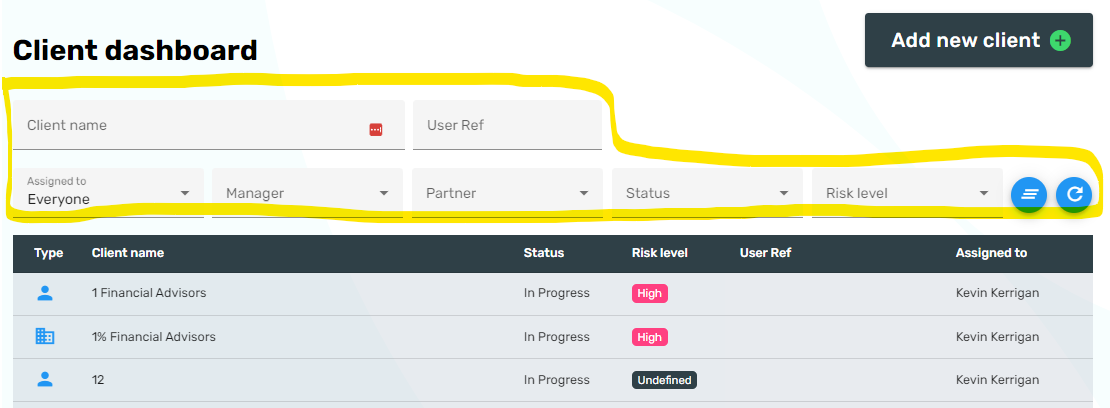
We have enhanced the filters at the top of the Client Dashboard so that your selection will be remembered when you leave and return to the page. This will be of particular benefit to users that need to change the Assigned to field to "Everyone" every time they visit the page. Your filter selections will be remembered until you clear your browser cache; alternatively there are blue buttons on the right had side of the filters section to clear and refresh your selection.
Client Risk Reviews
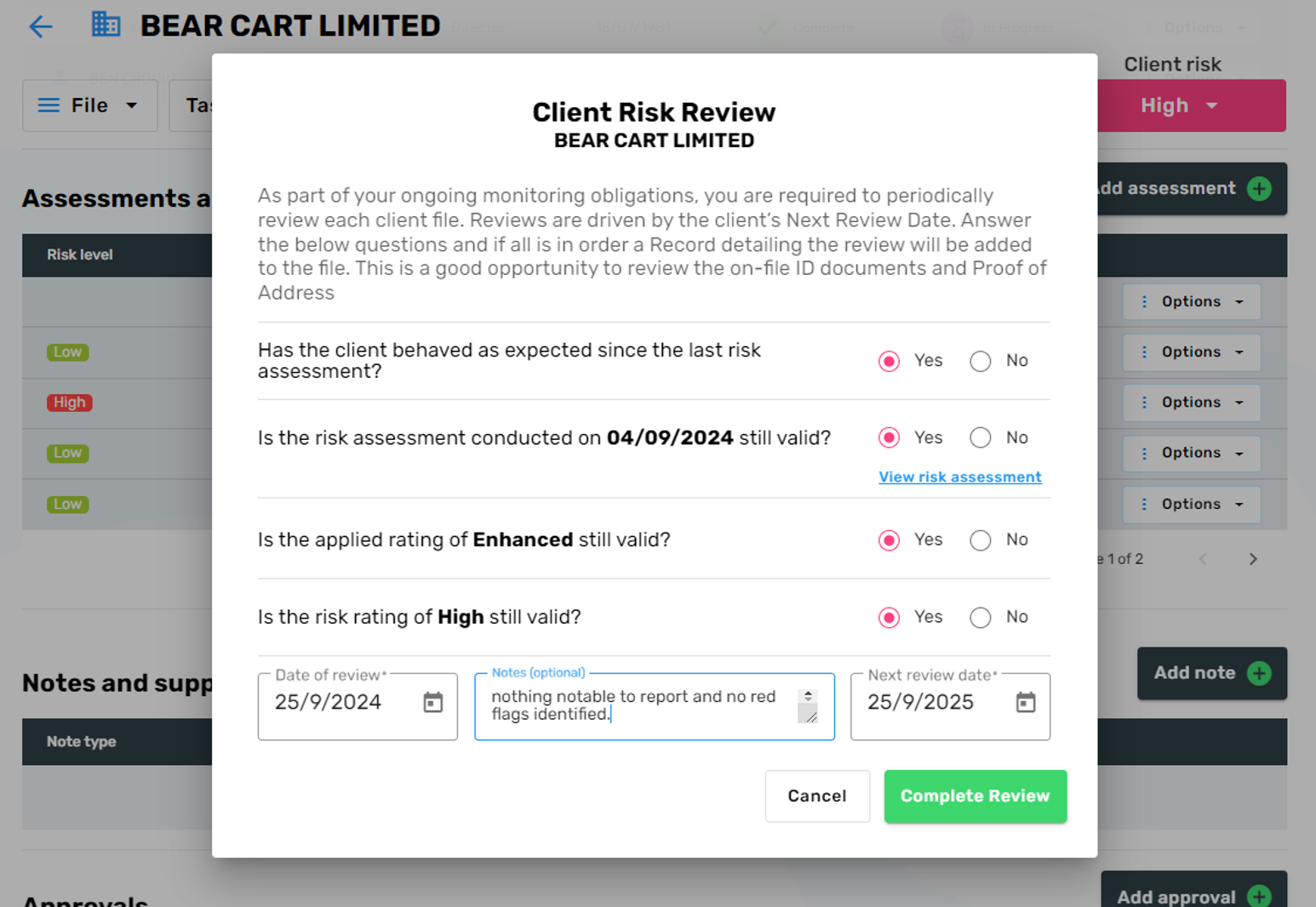
As part of your AML ongoing monitoring obligations, you need to evidence that you are periodically reviewing (at least annually) your Customer Due Diligence and risk profile for each of your clients. We have introduced Client Risk Reviews that provide a really efficient way to complete and document evidence of your ongoing monitoring.
If you enable Auto Create Tasks in your Account Settings then a Client Risk Review task will be created when a client's Next Review Date is reached. Alternatively, you can manually conduct a Client Risk Review via the File->Actions menu on the Client Details page.
The Client Risk Review will ask you four questions. If there is no change in the client's risk profile then a digitally signed record will be added to the client file as evidence of your ongoing monitoring and the Next Review Date will be pushed forward for another year (or custom date if required). If there is a change in the client's risk profile you will be invited to complete a full Client Risk Assessment.
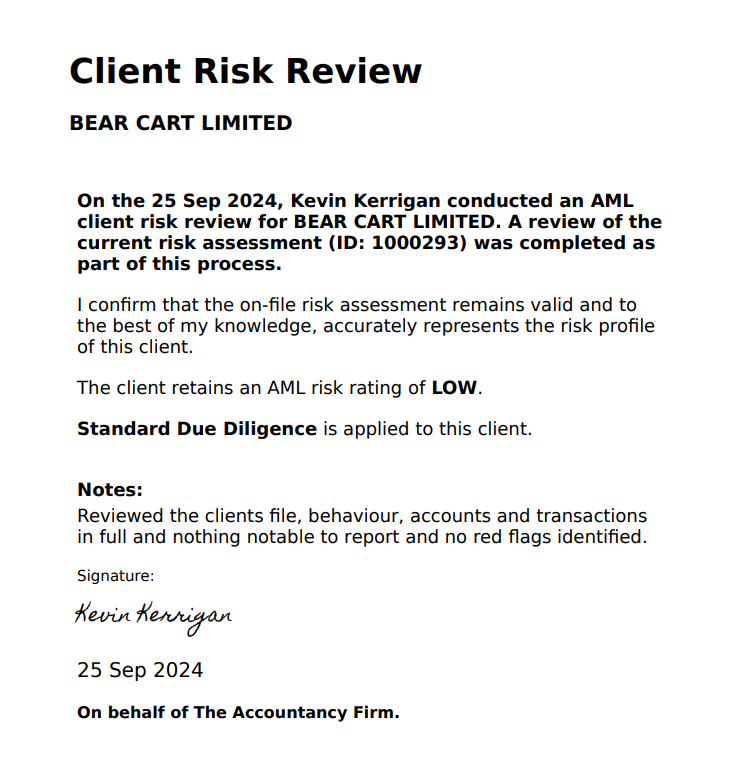
The following image shows a sample of a Client Risk Review record (PDF) which is added to the Client's AML file as evidence of your ongoing monitoring.
New Tasks Feature
A major enhancement to the service is the introduction of the new Tasks feature. Some of the key concepts are summarised as follows:
- Tasks are compliance actions that need to be completed.
- Tasks can be automatically created by the system (If Auto Create Tasks is enabled in your Account Settings).
- Tasks can also be manually created by you or your colleagues.
- Tasks can be assigned to users but they don't have to be (unassigned tasks).
Selecting Tasks from the Top Menu will present you with all of the tasks across your whole practice.
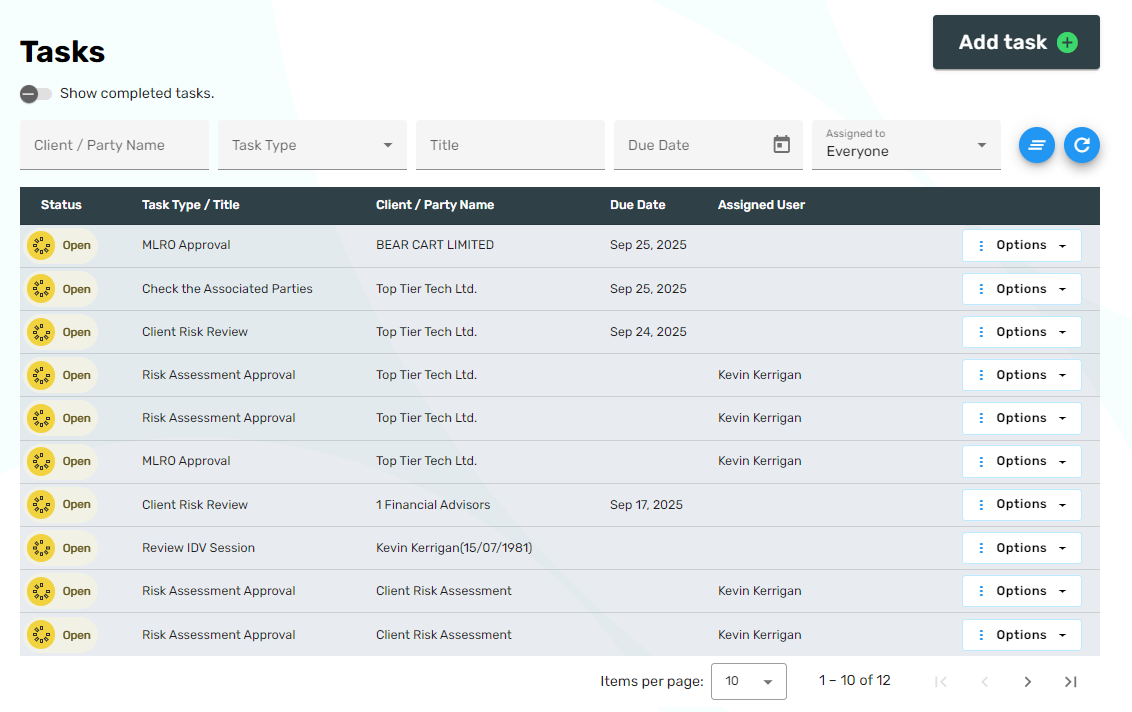
We have also added a Tasks link on the Client Details Page that will show tasks for that specific client.
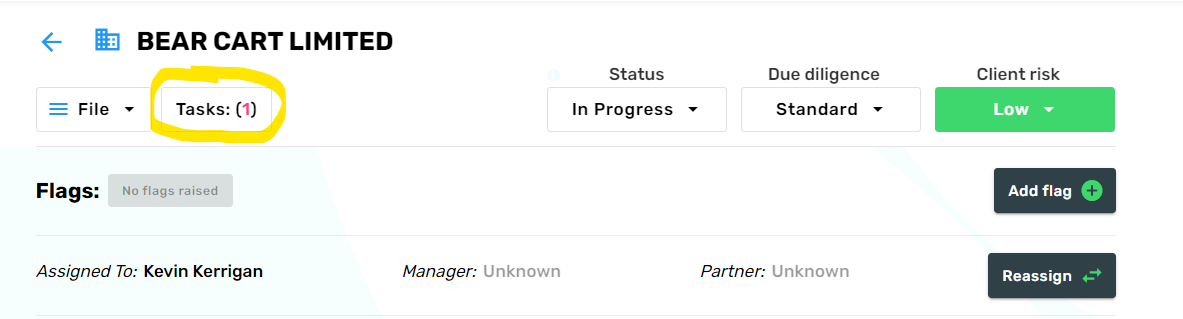
The different types of tasks are as follows:
Task Type | Description / Usage |
| MLRO Approval | MLRO approval is required when a client is identified as high risk and requires Enhanced Due Diligence (EDD). When a user completes a Client Risk Assessment that results in a high risk rating, the user will be asked if they want to create an MLRO Approval request or automatically provide MLRO Approval (in the scenario where they are the MLRO). |
| Risk Assessment Approval | A user can create a task to request a peer / manager to review and approve a Risk Assessment. This request has been introduced as an optional feature for practices that want to adopt an approval policy. |
| General Approval | A user can create a General Approval task to request a peer / manager to review and approve any element of a Client file. This request has been introduced for practices that want to apply an approval policy. |
| Client Risk Review | If Auto Create Tasks is enabled in your Account Settings then a Client Risk Review task will be created when a Client's Next Review Date is reached. The Client Risk Review task will prompt a user to conduct a review of the Client's AML file. It will provide an efficient process to review and record evidence of ongoing monitoring (see the above note on Client Risk Reviews for more information). A Client Risk Review task can also be manually created if required. |
| Review IDV Session | If Auto Create Tasks is enabled in your Account Settings then a Review IDV Session task will be created when an external client completes an identity verification request and their ID and Proof of Address documents are Awaiting Review. The task will present the ID and Proof of Address documents to the user for review and approval. |
| Review PEP Sanction Check | If Auto Create Tasks is enabled in your Account Settings then a Review PEP Sanction Check task will be created when a PEP and Sanctions screening has been started by not completed (i.e. awaits review). The task will present the screening results to the user for review and completion. |
| Other | Using the Other task type, you can create custom tasks with custom titles. |
Enabling the automatic creation of tasks
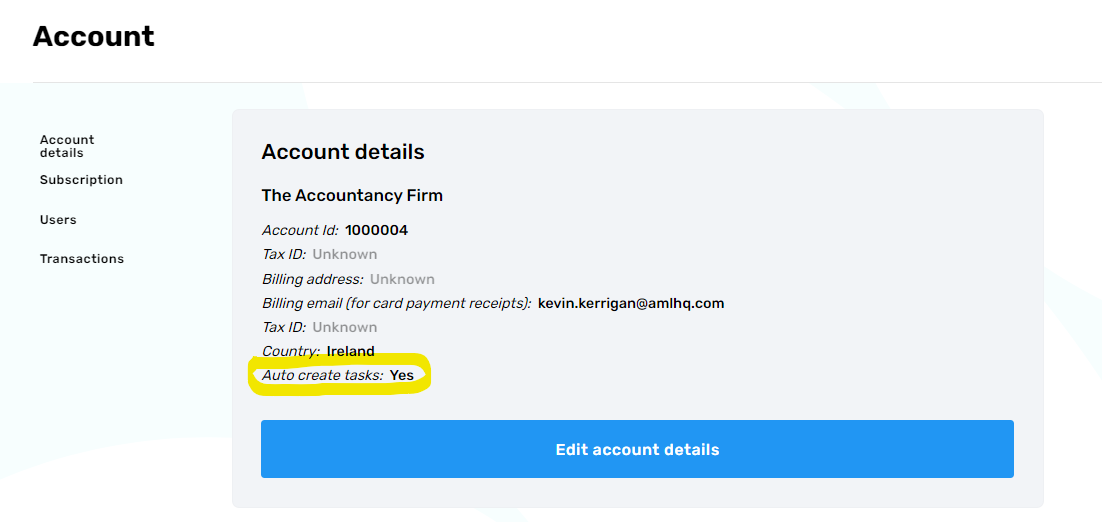
If you want to enable the auto creation of tasks you can do so via your account settings.
Please note that if you enable auto creation, the system will automatically generate a Client Risk Review task for any of your clients that have passed their Next Review Date. This could mean that a lot of tasks could be created and flagged for manual review and processing. The system runs the automatic task creation on a nightly batch basis.
Approvals
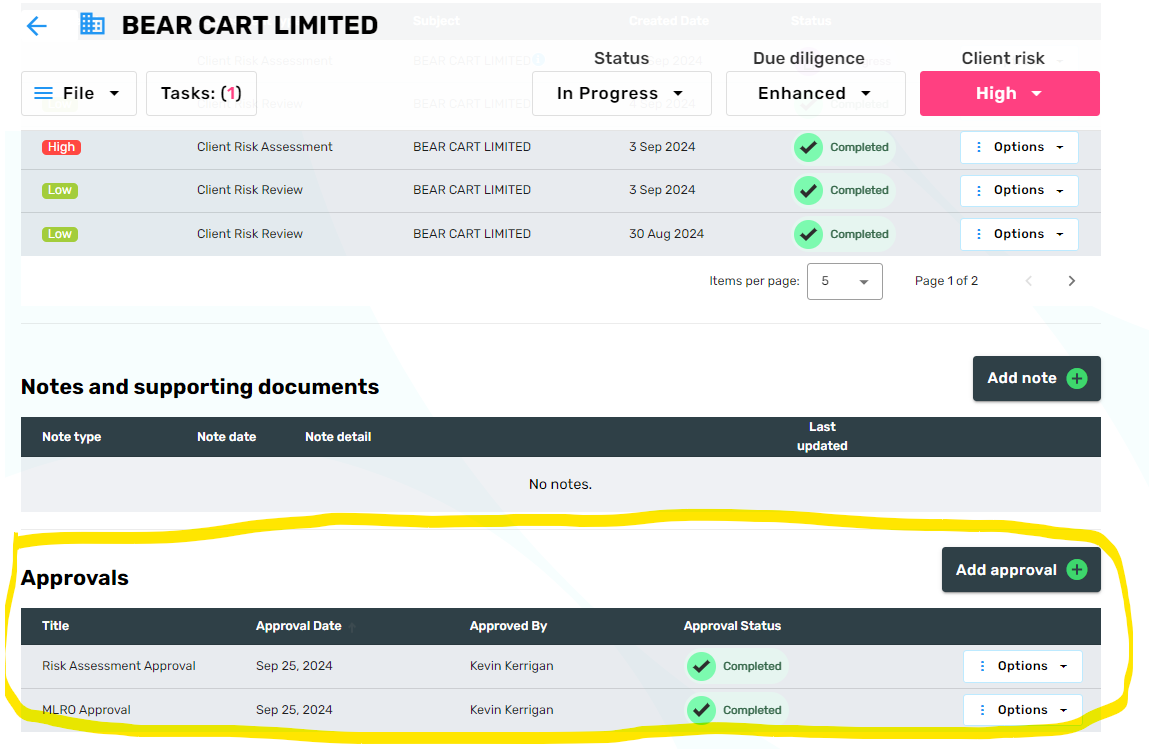
Within the Client Details Page we have added an Approvals section which displays evidence of approvals that have been recorded on the Client file. Approvals will be automatically added when an MLRO Approval task or General Approval task are completed. Approvals can also be manually added or requested from other users from within the Approvals section (by clicking the Add Approval button).
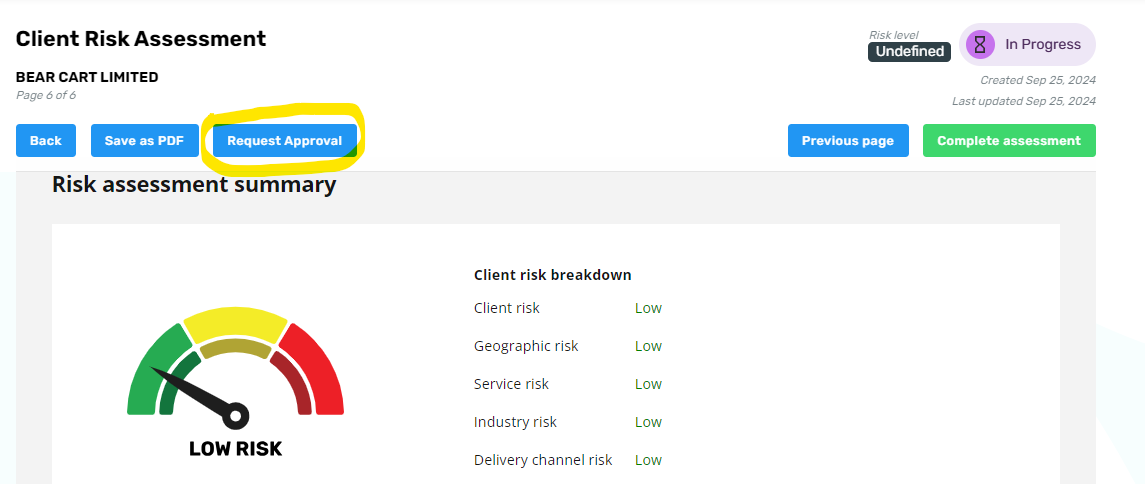
From within a Client Risk Assessment you can now optionally request that a Risk Assessment is reviewed and approved.
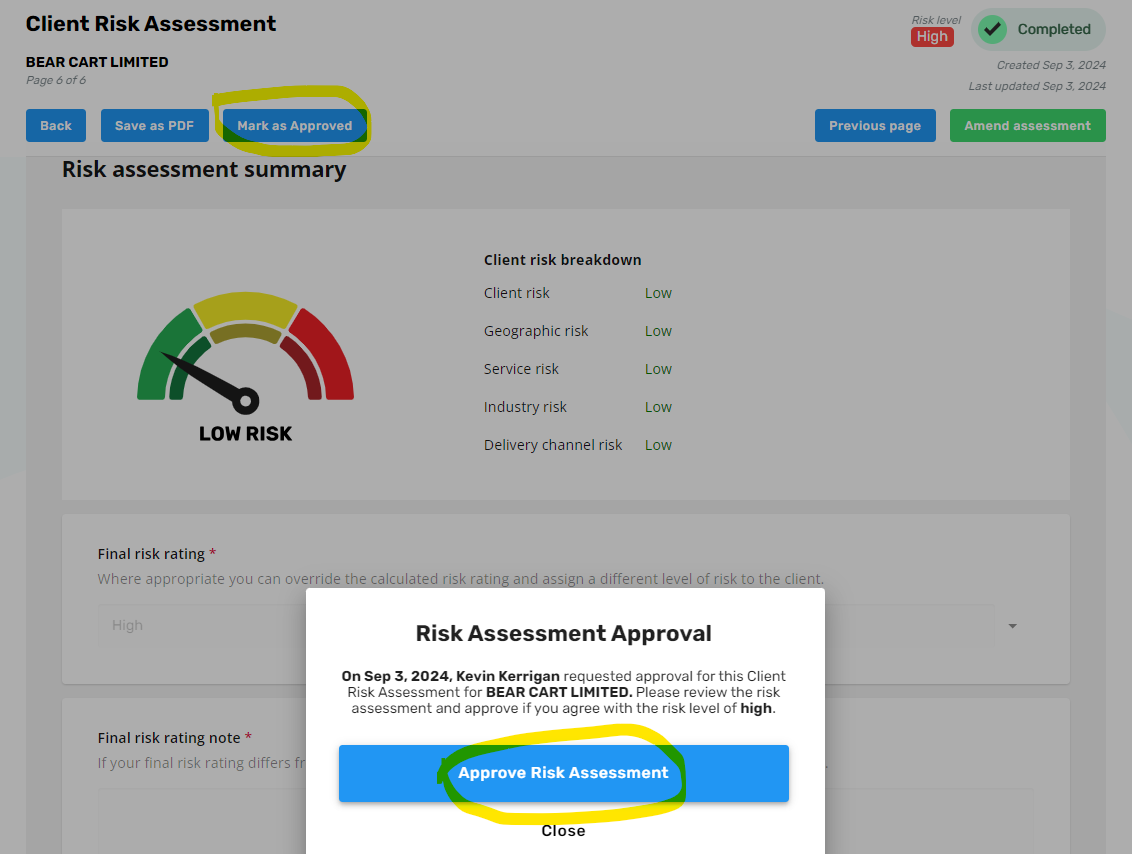
When you go to complete a risk assessment approval task, it will launch the Client Risk Assessment, where you can review and then mark the risk assessment as approved.
Miscellaneous Updates
The following smaller miscellaneous improvements have also been added as part of this update:
- Ability to upload external Risk Assessments (if they were previously created outside of AML HQ)
- Ability to specify note date for client notes
- Enhancement to text searching on name for clients, identity verification sessions (linking), data requests and reporting. This will allow searching for clients and linked ID verification sessions to be much more powerful as the search will use words or partial words making it easier to find your records.
- New note types for Irish CRO form types