
Client Access Controls
On the 11th June 2026, we introduced client file access controls, giving firms greater control over who can access client information.
Prior to this release, all users within a firm could access all client files and you were only able to assign a client to a User, Manager, or Partner. Assigning a client does not restrict access to the client file - it is simply a convenience feature that allows you to filter clients by their assigned staff member within your Client Dashboard and Reports.
With the release of this new feature, access can be restricted to individual staff members, User Groups, or both. Team members can still be assigned as a User, Manager, or Partner, and if you enable restictions for a client file, this will be granted access. In addition, if your administrator has set up User Groups, the system will allow you to assign User Groups who will also have access to the client file. You can use either method on its own, or combine both to control who can access the client file.
For highly confidential clients, you can also hide the client file from appearing in search results. If this is enabled for a client, searches in the dashboard, or in reports, or in linking screens, will only return matches for users that are assigned the client (either directly as a User, Manager, Partner or via a User Group).
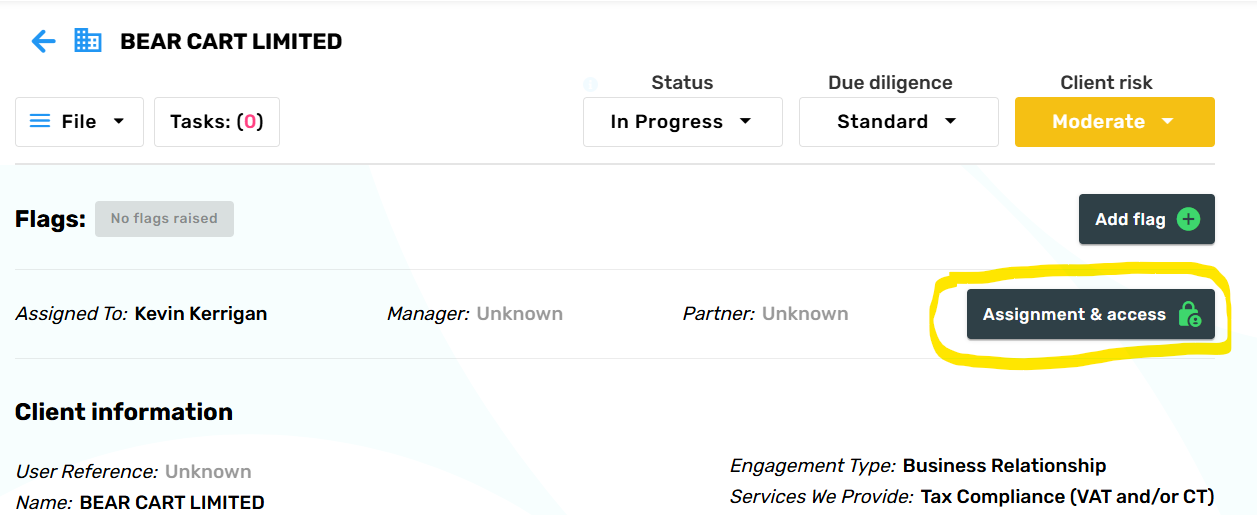
When you select the Client access button, you are presented with the option to assign a user, manager and partner as normal. You will also notice the new option to restrict who can access the Client file.
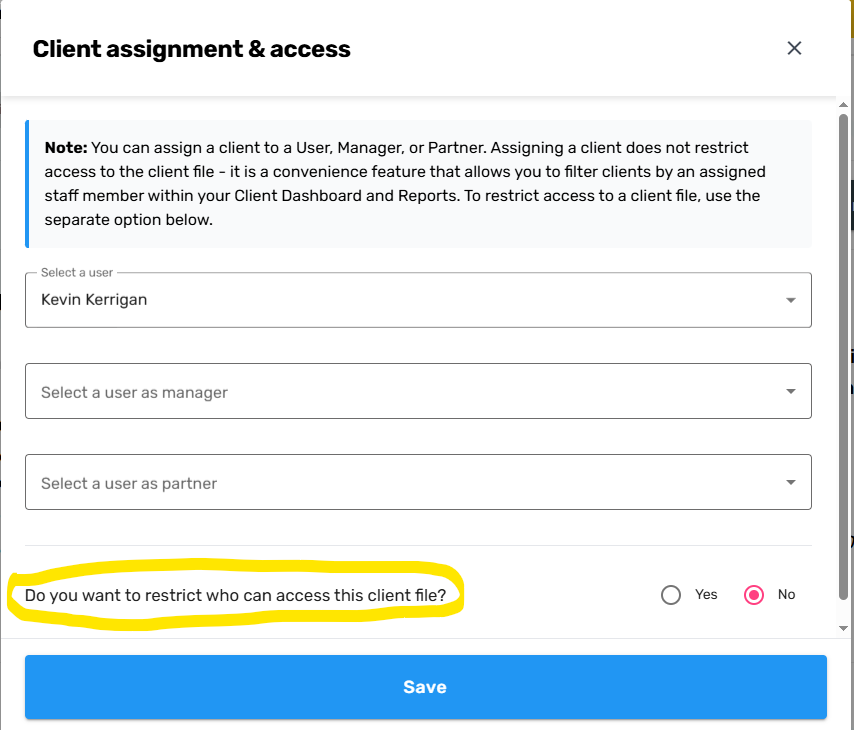
If you opt-in to restrict who can access the Client file, the screen will provide you with the option to assign user groups. In addition any User, Manager or Partner can also be assigned to this file. You can use either method on it own, or restrict access to both assigned User Groups and named individuals.
It is important to note that any users that have the MLRO role will automatically be able to access all restricted and unrestricted client files.
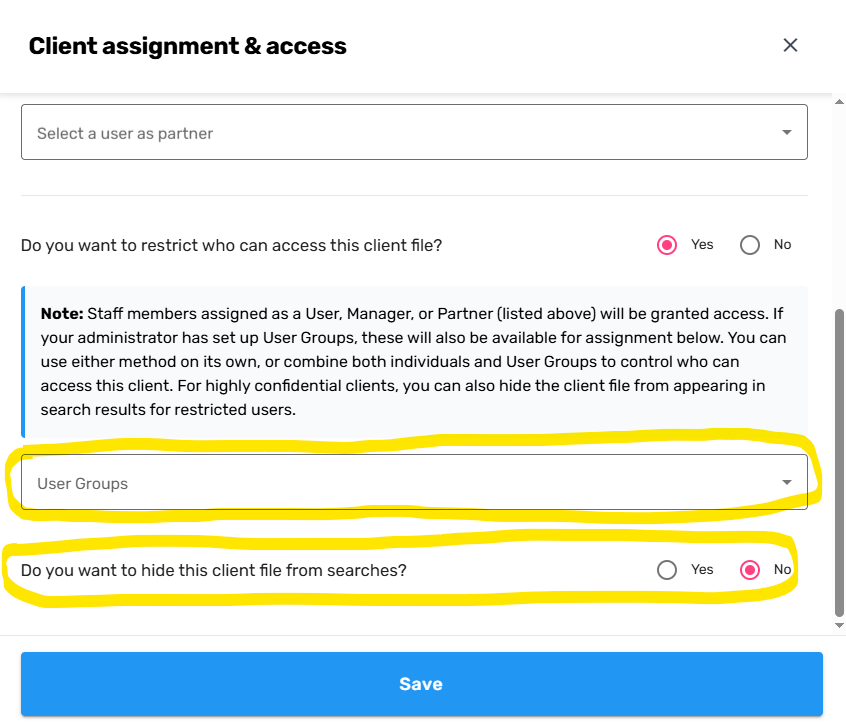
In addition to being able to restrict access to a client file. For highly confidential clients, it is also possible to restrict clients from being found or returned in search results (searches include client dashboards, client reports, and ID Verification / PEP/Sanctions / Person Verification linking screens).
In addition to our recent introduction of role-based access controls, this new functionality further reinforces access and governance controls for AML HQ users.
The Administrator in your team can create User Groups from within the Accounts settings section.
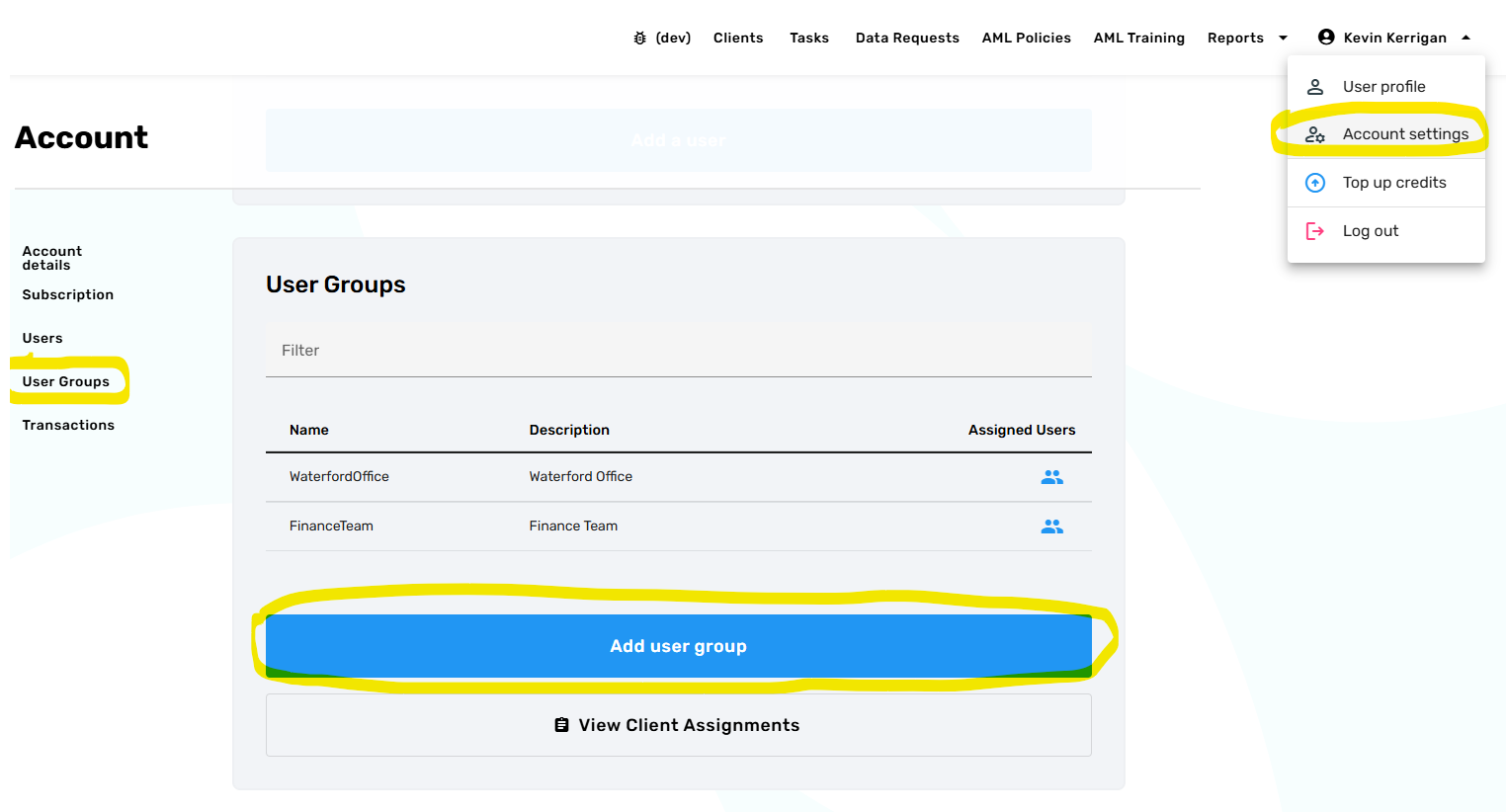
After a User Group is created, the administrator can assign Users to one or more groups.
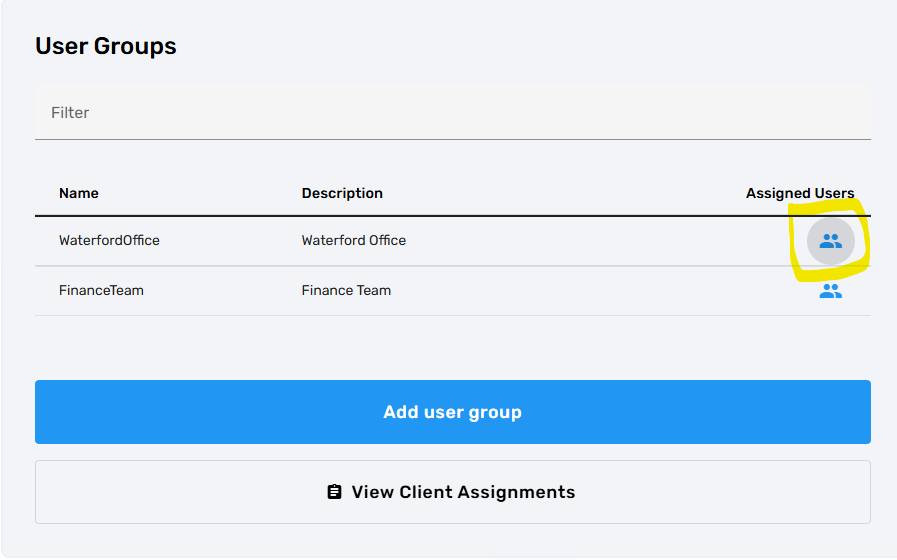
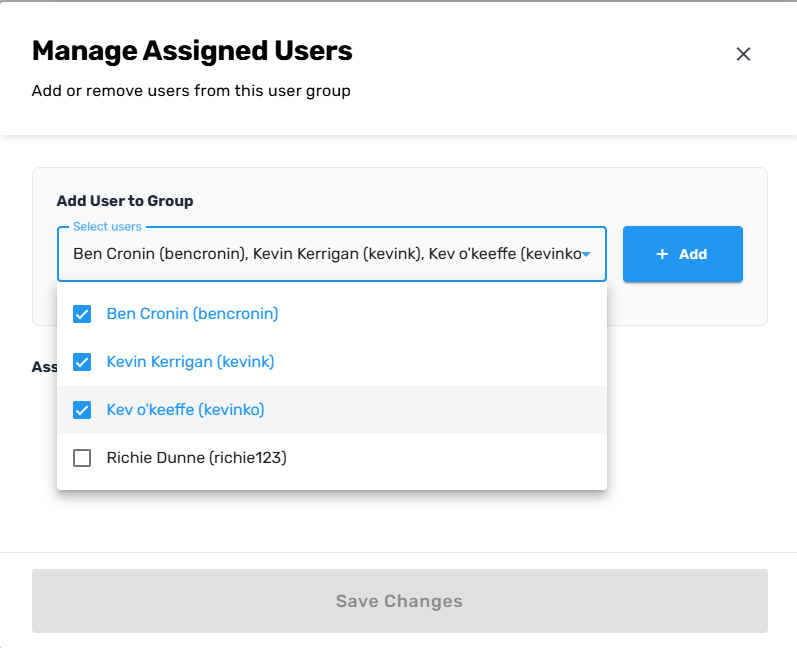
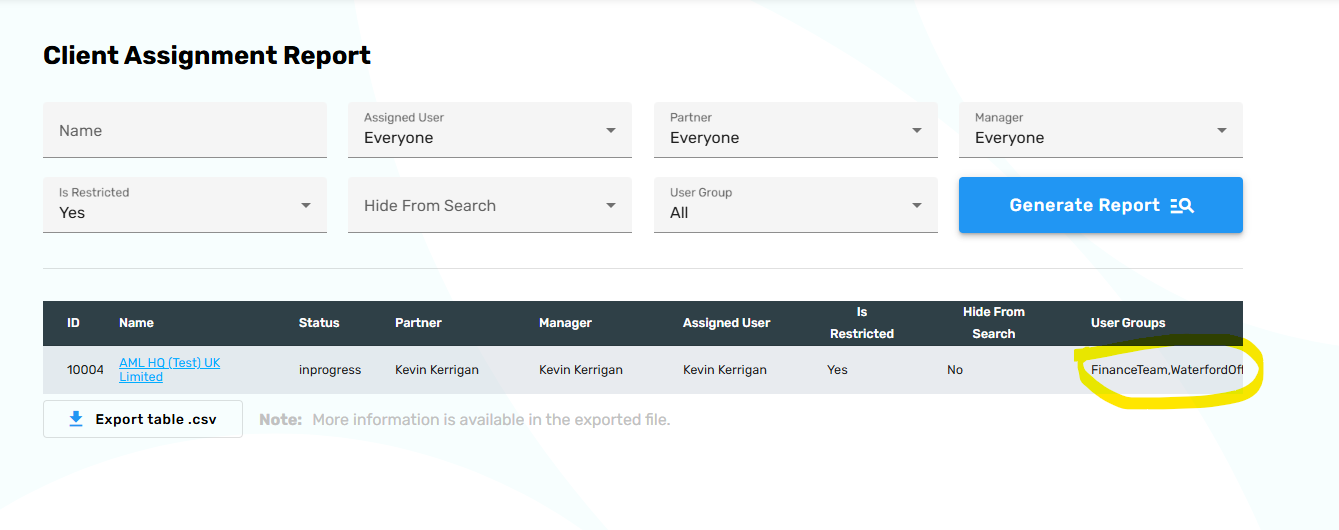
The Administrator can also use the View Client Assignments report to see which client files are restricted and who has access.
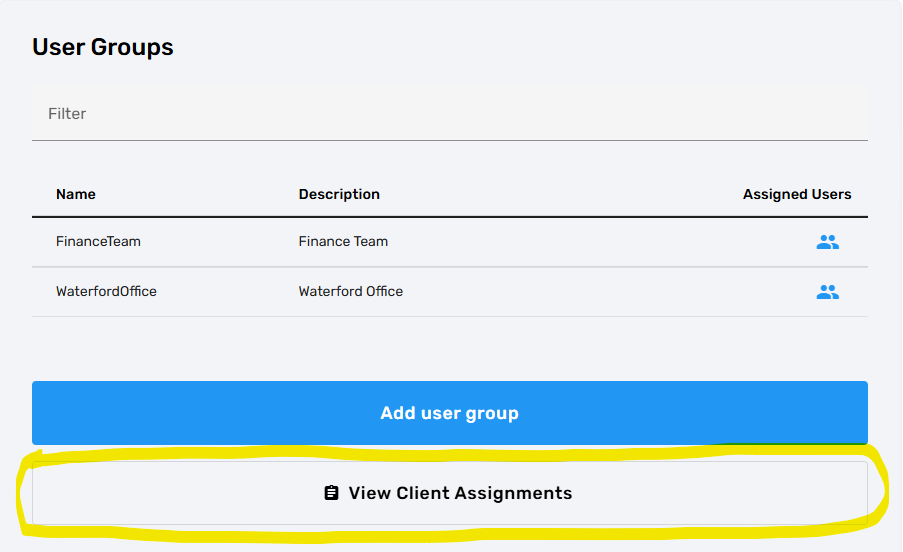
The report allows the administrator to filter on a number of search criteria, including which Client files are restricted and / or which individuals or User Groups have access.
If you have a requirement to reassign a large number of Clients to an individual or User Group, contact support@amlhq.com and we will manage this for you so that you don't have to do this manually.